

Get your league going
LeagueNest runs on Windows, the web, Android and iPhone. Start on whichever you have, and your league is the same everywhere.
Ways to use LeagueNest
Windows
The Windows app runs the same league as the web and phones, with Windows notifications while it's open.
Ask for the Windows appThe web
Open LeagueNest in any browser on a computer, tablet or phone. Nothing to install.
Open the web appAndroid and iPhone
Install LeagueNest on your phone, or open the web app in your phone's browser. Your league follows you to every device.
Open on your phoneBefore the setup guide
- 1Create an account
Type your email and a password, or tap Continue with Google. - 2Confirm your email
Tap the link in the email from LeagueNest, then tap I've verified. - 3Start a new league
Type the league name and town. You'll see "League created. Your 30-day trial has started." and the setup guide opens.
Joining a league instead? Tap Join with a code and type the code your league gave you. A league code makes you a parent or fan. An invite code from an admin gives you the role they picked, like coach.
Start a free leagueStart a league in about ten minutes
The setup guide has nine short steps. Teams, Fields, Players and Practices can be skipped and done later. Click through the steps to see each one.
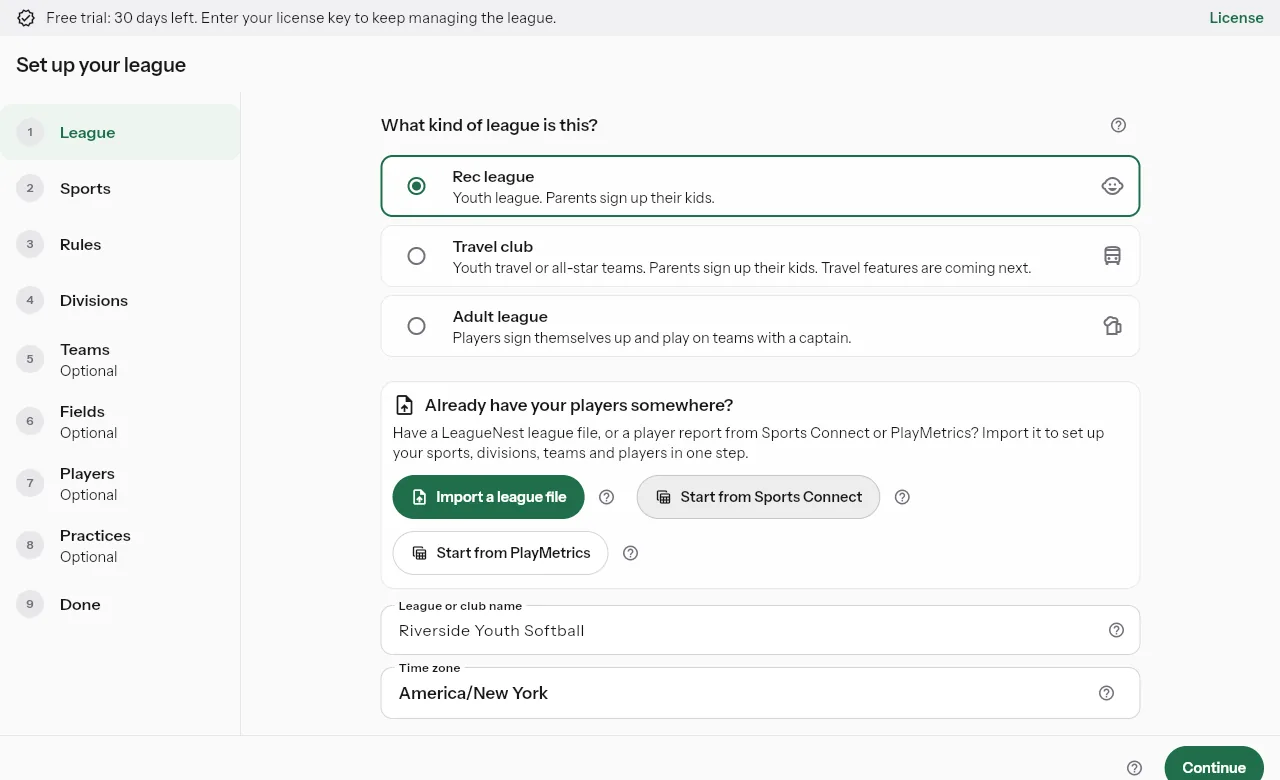
Name your league.
- Type the league name families will see.
- Pick the time zone where your fields are. Game times, reminders and weather checks use it.
- Choose Rec league, Travel club or Adult league.
- Already have your players somewhere? Import a league file, or start from Sports Connect or PlayMetrics.
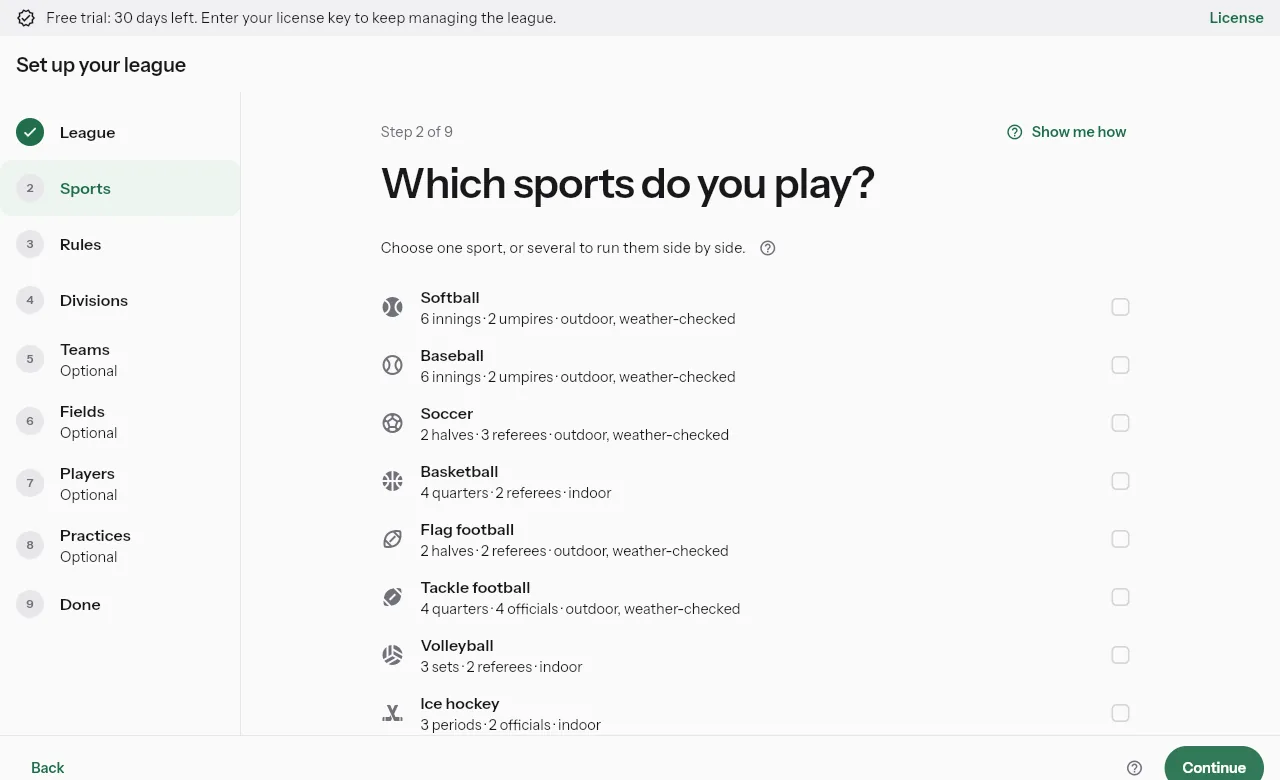
Which sports do you play?
- Check one sport, or several to run them side by side.
- Tap Continue.
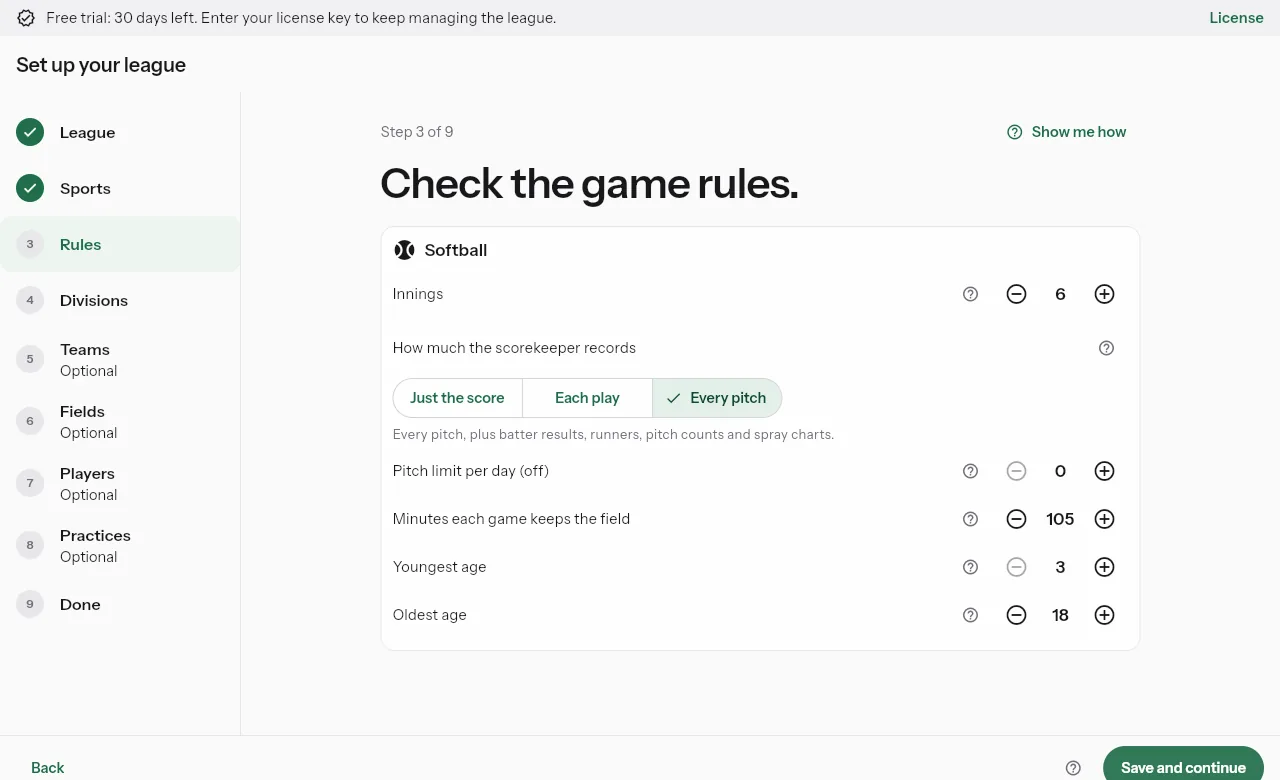
Check the game rules.
- For each sport, check the number of innings, halves or quarters and the game length.
- Check the youngest and oldest age that can register.
- Pick how much the scorekeeper records, from Nothing live to Every pitch.
- Tap Save and continue. You can stop here and finish later.
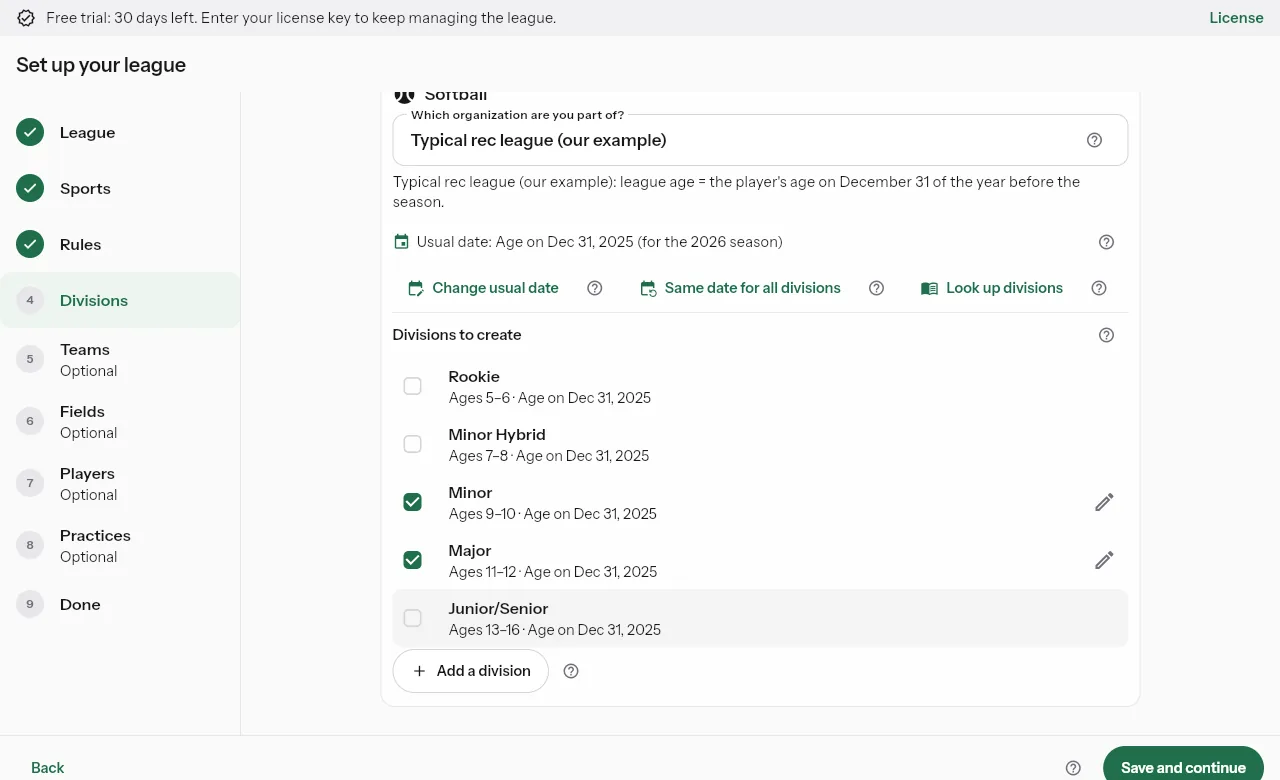
Set up your divisions.
- Pick your organization, like Little League, Babe Ruth or US Youth Soccer, or None / our own.
- Check the divisions to create, and review each one's ages and age date.
- Tap Save and continue.
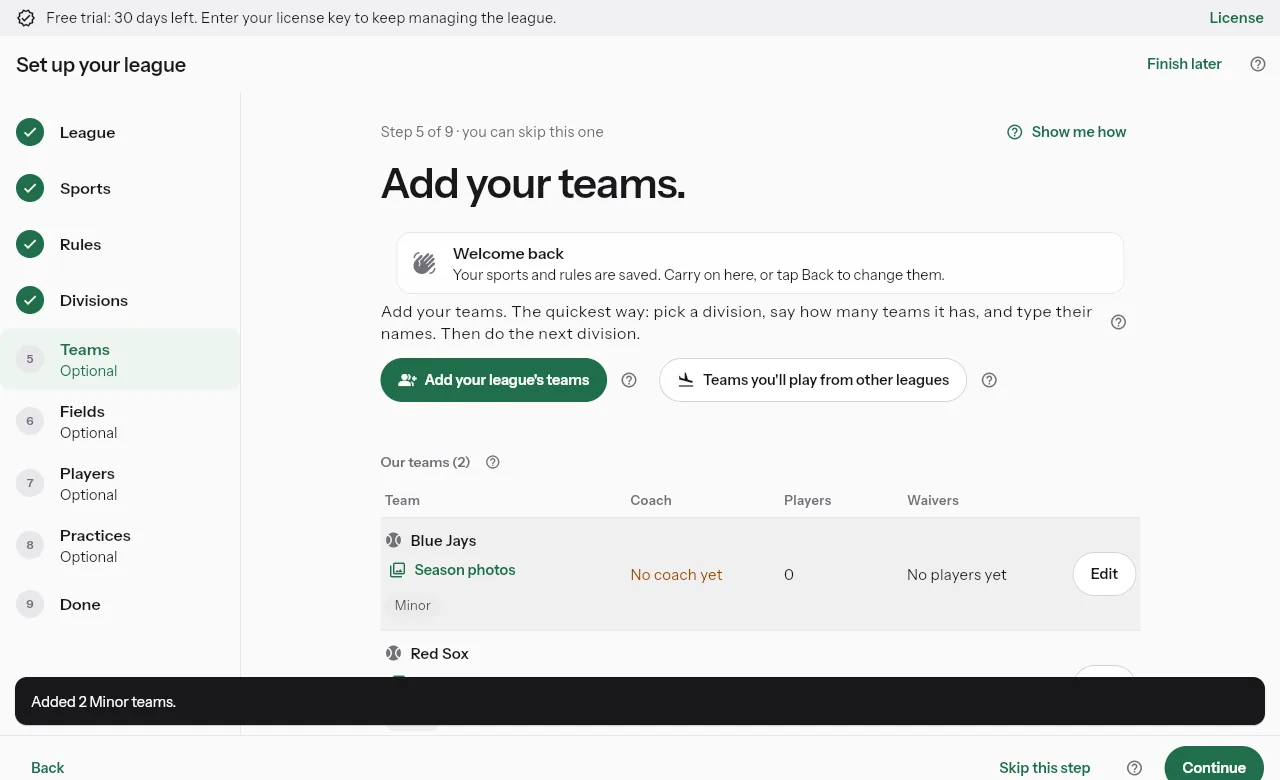
Add your teams.
You can skip this one- Tap Add your league's teams, pick a division and say how many teams it has.
- Type each team's name, or leave it empty for Team 1, Team 2 and so on.
- Play teams from other towns or schools? Add them under Away teams you'll play.
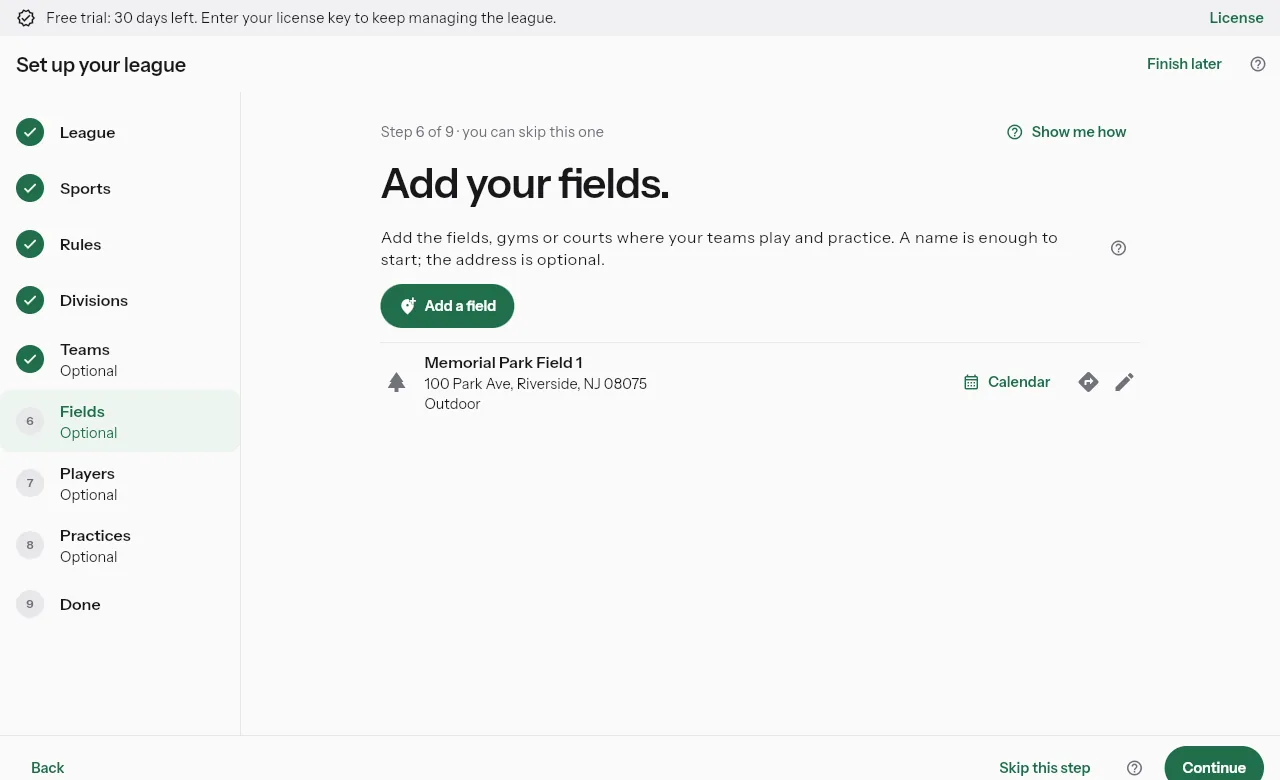
Add your fields.
You can skip this one- Tap Add a field. A name is enough to start, and the address is optional.
- Mark whether it's indoors and whether it has lights.
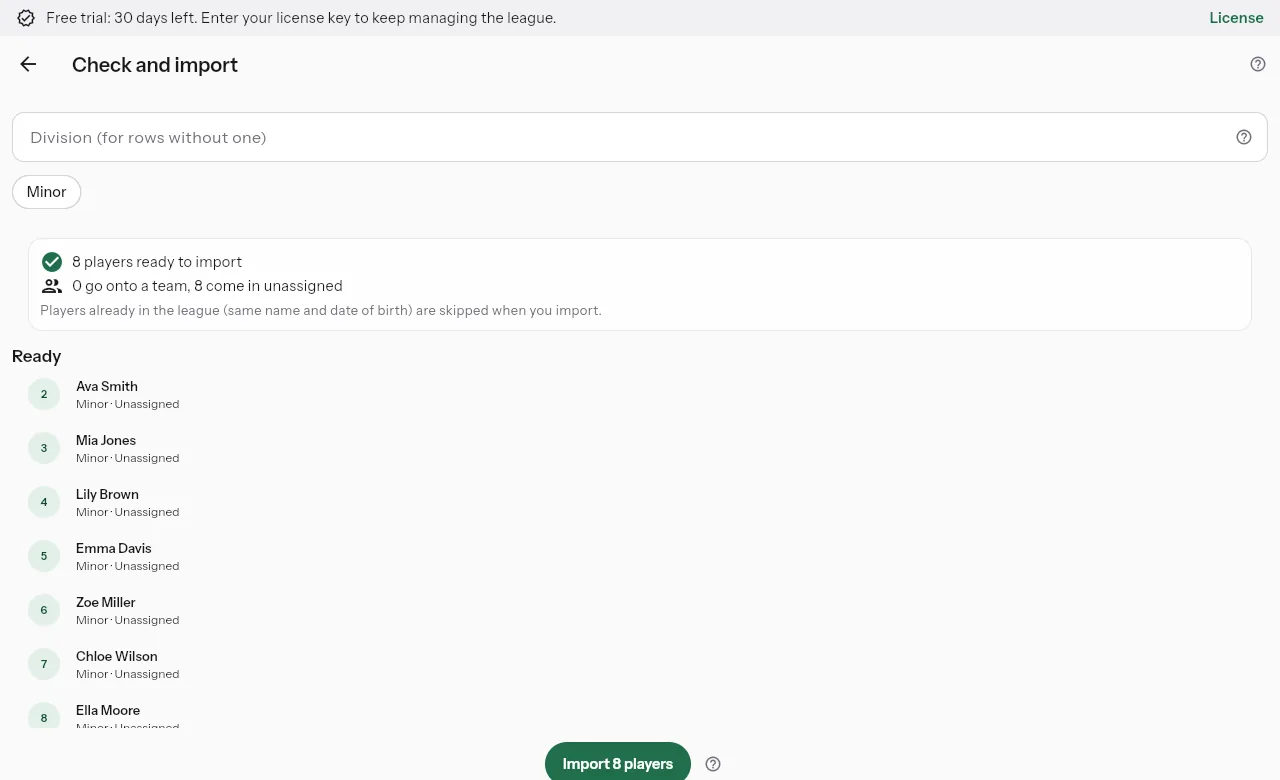
Bring in your players.
You can skip this one- Answer Yes if you have a list of players to bring in.
- Pick the file, match its columns, and check every player before you import.
- Players already in the league are skipped.
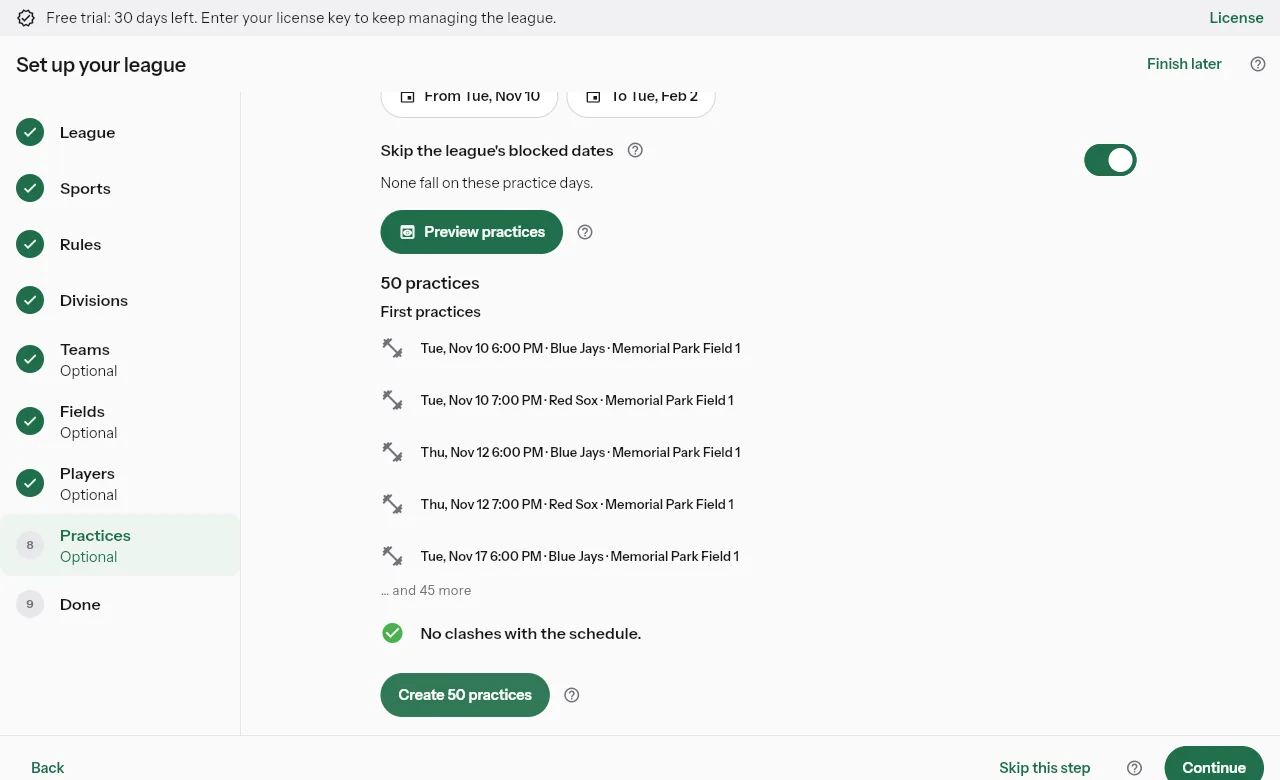
Plan your practices.
You can skip this one- Pick the days, times and fields for each team's practices.
- Tap Preview practices to see the list and any clashes.
- Create them all at once.
You're all set.
- See what was set up, and the next steps like inviting coaches.
- Tap Open LeagueNest to go to Today.
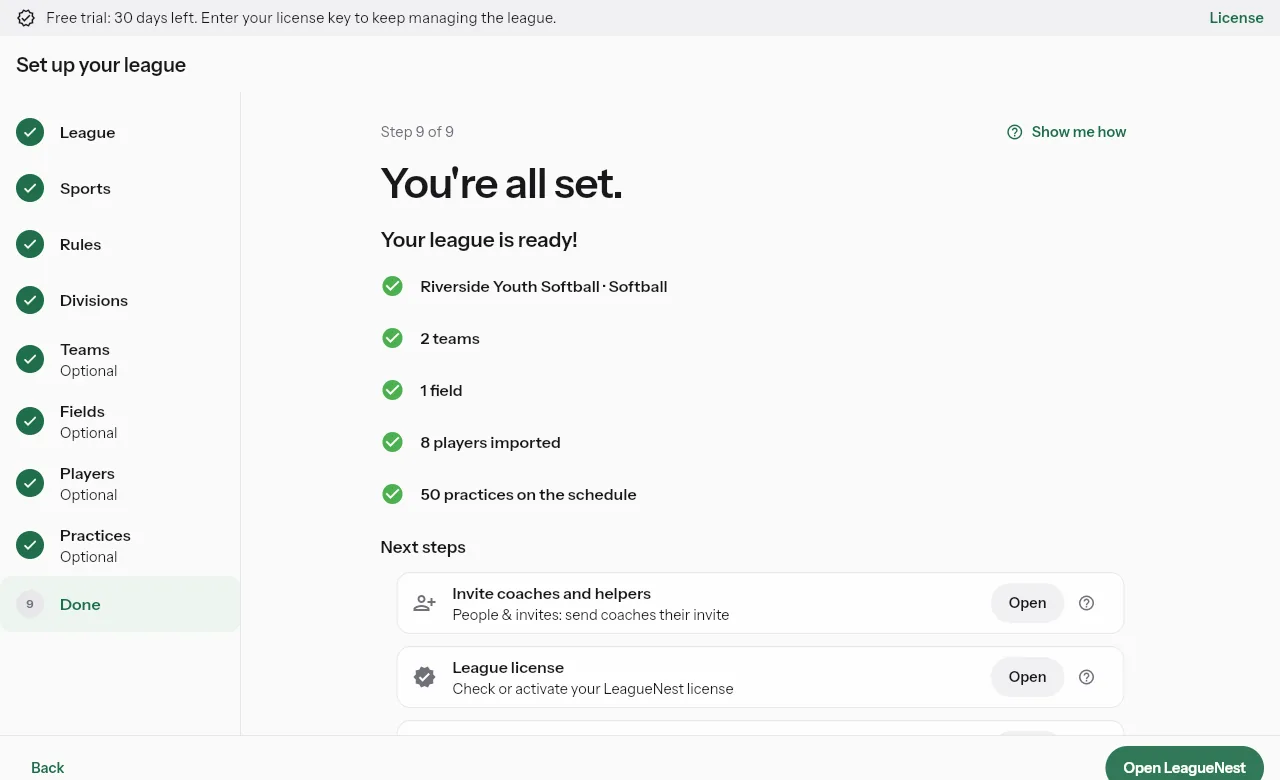
Screens from a test league with made-up names. Every step has a Show me how link to its help guide.
Ready when you are
Set up your league in about ten minutes. Every new league starts with a 30-day free trial, no card needed.